
Payment Conversation
Getting your customer to make a payment.
When a conversation is created, AuthVia will work with the customer to collect a payment. This could be multiple steps on the customers side depending on their circumstances, all of which your implementation does not need to be bothered with.
Prerequisites
If you need help with any of the below items, please check our docs or reach out to [email protected] with any questions.
- You already have a merchant account created.
- You have an application setup for the merchant with permissions for creating conversations.
- Your merchant is properly configured with the right products, for what messaging services to use and what payment products should be available.
Try it with a GUI first.We have a portal experience for merchants that you can sign up with to see the user experience. Signup Here
Authenticate as Merchant
The first step is to authenticate as a merchant that you want to send the conversation from.
🔒 Creating Merchant authentication token
Learn how to create authentication tokens for merchant accounts to enable conversation creation.
Create Conversation
Using the merchant's token you want the request to be made from, use the below recipe to create a conversation.
- Ensure that you set
"realtime": truein your request, so that the messages will be sent out immediately. - Use your own sms capable phone number for the address value. VOIP numbers come with limited support, so a valid US mobile number is recommended for the full experience.
💧 Creating a basic Payment Conversation
Learn how to create a basic payment conversation that will send payment requests to customers.
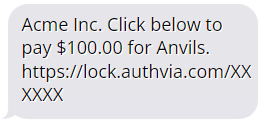
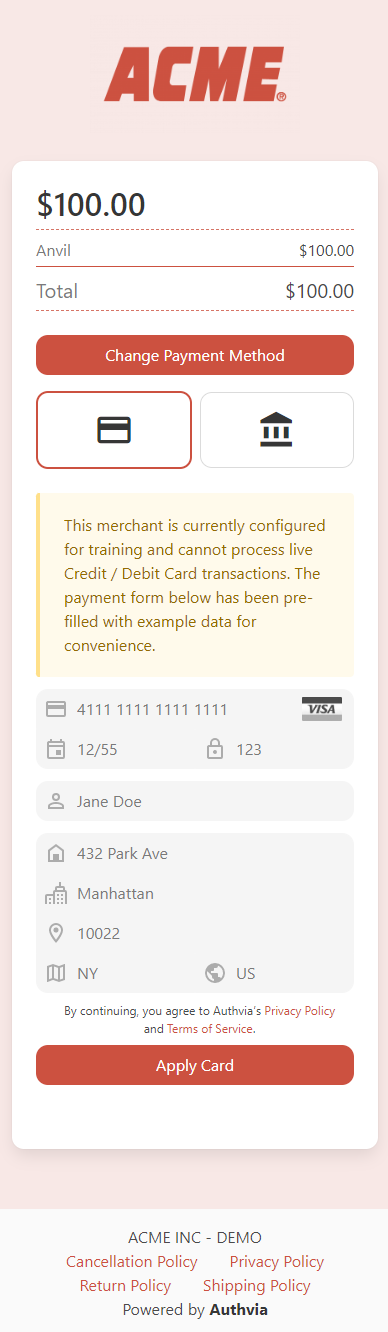
Upon successful creation of the record you will receive the following response, with a 201 status code. Go through the user experience, which will request that you click a link to pay the amount requested. Go through the full user experience, which if you are in test mode, will pre-fill a test card for you to expedite your testing.
When the user clicks the link, they will see an experience like the following. The branding of the experience will depend on what is defined on the merchant theme.
Create a Second Conversation
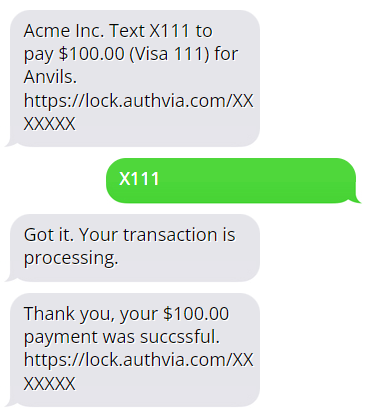
Once you've completed payment, re-send your payment request, you will see the experience has changed and you can now reply with a code to complete payment entirely over SMS.
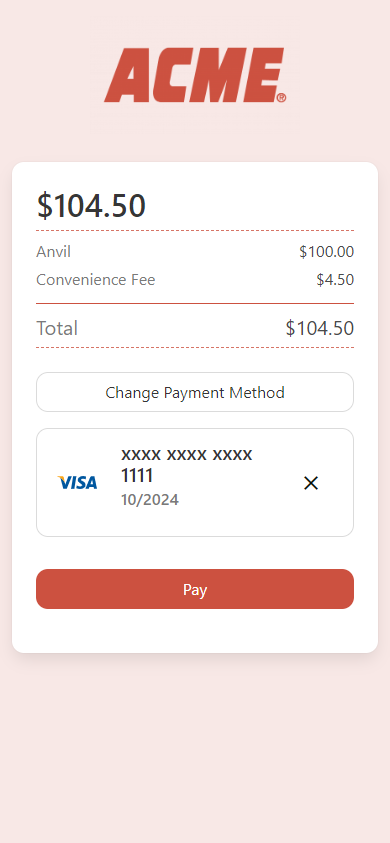
If the user clicks the link, they will see an experience like the following. The payment method is already filled out and the user simply has to click pay, to process payment. However, if the user removes the payment method they can change the payment method, to any tender type that is configured on the merchant.
Realtime and Politeness Window
It is often the case, that conversation need to be created during a batch routine, and as a result sending messages during creation makes little to no sense. So if you omit "realtime": true you will default to the system default, or merchant configured, politeness window. The system default is 10AM to 6:59PM CST.
Updated 7 months ago
To play around with your language, click on the New Conversation link below. You can create a token locally (using Postman) and provide it in the header of your request.
Otherwise, check out some of the guides focusing on specific use cases.